Graphing Calculators · Volume 7
Operating the TI-84 Plus CE
The TI-84 Plus CE is worked from the keyboard and a handful of menus, and almost everything it does starts from one of two places: the home screen, where calculations are typed, and the row of five graph keys under the screen, Y=, WINDOW, ZOOM, TRACE and GRAPH. The 2nd and ALPHA keys give each key two more functions, printed above it.
The examples here come from Texas Instruments’ guides. Those marked CE are from Getting Started with the TI-84 Plus CE (2023 edition); the rest are from the complete guidebook of the TI-84 Plus C Silver Edition (2013), which has the same screen, keys and menus. The page numbers are the guides’ printed ones. Most of TI’s results are shown only in pictures of the screen; those pictures are reproduced here, and the results quoted from them.
7.1 Switching on, brightness and power
ON switches the calculator on and 2nd ON switches it off; settings and memory are kept. The calculator switches itself off after “about three to four minutes of inactivity” and comes back exactly as it was left. 2nd ↑ and 2nd ↓ make the screen lighter and darker, and it dims itself after 90 seconds without a key press (CE, pp. 5–7). A new calculator is shipped in Deep Sleep, to save its battery; holding ON for four seconds, or plugging it into USB, wakes it (CE, p. 69).
7.2 The home screen
In the default MathPrint mode, fractions, roots, powers and the like are typed into templates and shown as they are printed in a textbook. The blue status bar across the top shows the current modes. Previous entries and answers can be scrolled with ↑ and ↓ and pasted back with ENTER.
Two rules catch people out. The negation key (−), next to ENTER, is not the subtraction key, and using one for the other gives an error. And the CE multiplies implicitly: typing 3 (−) 2 shows 3*−2 and gives −6, and it reads 1/2X as (1/2)X, where, TI notes, other calculators may read it as 1/(2X) (CE, p. 30).
7.3 Modes
The MODE key opens a screen of settings, each a row of choices with the current one highlighted. The defaults are MathPrint, NORMAL notation, FLOAT decimals, RADIAN, FUNCTION graphing, THICK lines, REAL numbers and FULL screen. The notation setting changes how a decimal answer looks, not how it is stored (CE, p. 22):
Table 1 — The MODE key opens a screen of settings, each a row of choices with the current one highlighted. The defaults are MathPrint, NORMAL notation, FLOAT decimals, RADIAN, FUNCTION graphing, THICK lines, REAL numbers and FULL screen. The notation setting changes how a decimal answer looks, not how it is stored (CE, p. 22)
| Setting | 12345.67 is shown as |
|---|---|
| NORMAL | 12345.67 |
| SCI | 1.234567E4 |
| ENG | 12.34567E3 |
FLOAT shows up to ten digits; choosing 0 to 9 fixes the number of decimal places. 2nd MEM 7 2 2 (MEM is above the + key) resets the modes, the window and the other settings to the factory defaults; “stored data and programs are not changed” (CE, p. 44; p. 330).
7.4 Graphing a family of parabolas
TI’s first graphing example (pp. 72–73) draws y = 0.2x² and two copies of it shifted upwards:
- Press Y= and type .2 X,T,θ,n x² ENTER, for Y1 = .2X².
- For Y2 = Y1 + 1, press ALPHA F4 to open the Y-VARS shortcut menu, ENTER to paste Y1, then + 1 ENTER. Do the same for Y3 = Y1 + 2. Each line takes a different colour, shown by the square at its left.
- Press ZOOM 6 (ZStandard). This resets the window to −10 to 10 in both directions and draws the graph at once.
- For speed, turn off asymptote detection, which these curves do not need: 2nd FORMAT, then select Detect Asymptotes Off.
- Press ZOOM 4 (ZDecimal), then TRACE, and move along a curve with ◄ and ►; ▲ and ▼ jump between curves. With ZDecimal each step is 0.1.
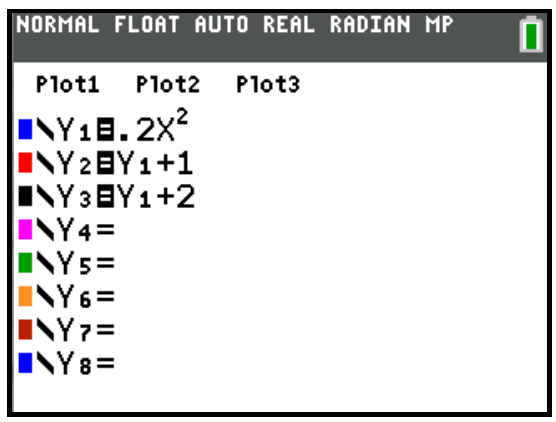
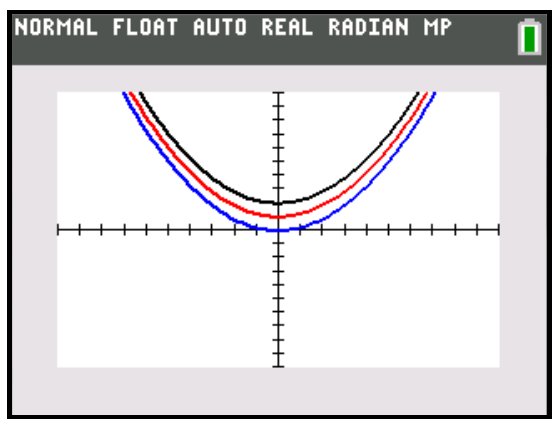
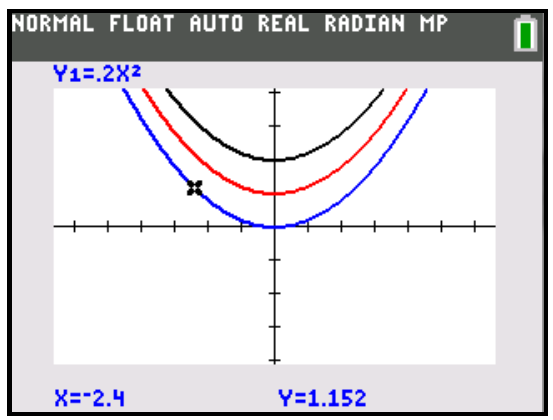
The trace screen in TI’s picture shows the cursor at X = −2.4, Y = 1.152, which is 0.2 × 2.4².
7.5 Analysing a graph: the CALC menu
2nd CALC (above TRACE) offers value, zero, minimum, maximum, intersect, dy/dx and ∫f(x)dx. Each asks for its inputs on the graph itself: for a zero, a Left Bound?, a Right Bound? and a Guess?, chosen by moving the cursor and pressing ENTER; for an intersection, the first curve, the second and a guess, and “the intersection must appear on the display”. Minimum and maximum work to a tolerance of 1E−5, and dy/dx uses H = 1E−3 (pp. 91–93). Volume 6 explains the methods.
7.6 A tangent line
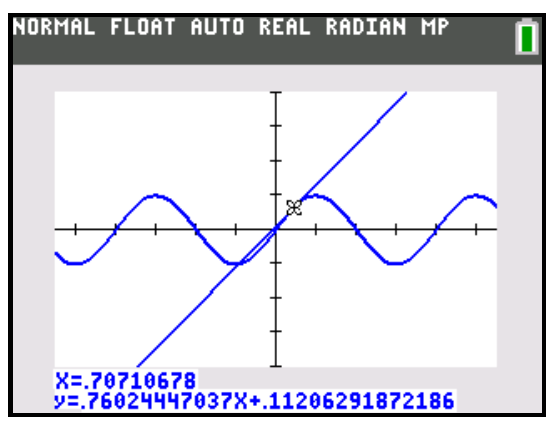
2nd DRAW 5 draws a tangent. TI’s example (pp. 123–124) finds the tangent to y = sin x at x = √2/2:
- In MODE, choose Radian, and FIX 4 decimal places.
- In Y=, enter Y1 = sin(X).
- ZOOM 7 (ZTrig).
- 2nd DRAW 5 (Tangent), then type 2nd √ 2 ) ÷ 2 and ENTER.
The line is drawn and its equation printed at the foot of the graph. With FIX 4 TI’s screen shows y = .7602X + .1121 at X = .7071; with FLOAT it shows y = .76024447037X + .11206291872186 at X = .70710678.
7.7 Tables
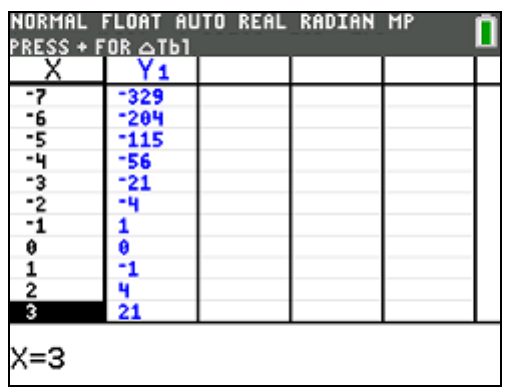
2nd TBLSET (above WINDOW) sets up a table and 2nd TABLE (above GRAPH) shows it. TI’s example (p. 117) asks where Y = X³ − 2X changes sign between −10 and 10:
- In Y=, enter Y1 = X³ − 2X (the cube is MATH 3).
- In TBLSET, set TblStart = −10 and ΔTbl = 1, with Indpnt and Depend both on Auto.
- In TABLE, scroll down with ▼.
The table runs −980, −711, −496 … and then, near the origin, −4 at X = −2, 1 at X = −1, 0 at X = 0, −1 at X = 1 and 4 at X = 2. So the function changes sign between −2 and −1, is zero at 0, and changes sign again between 1 and 2: its roots are 0 and ±√2.
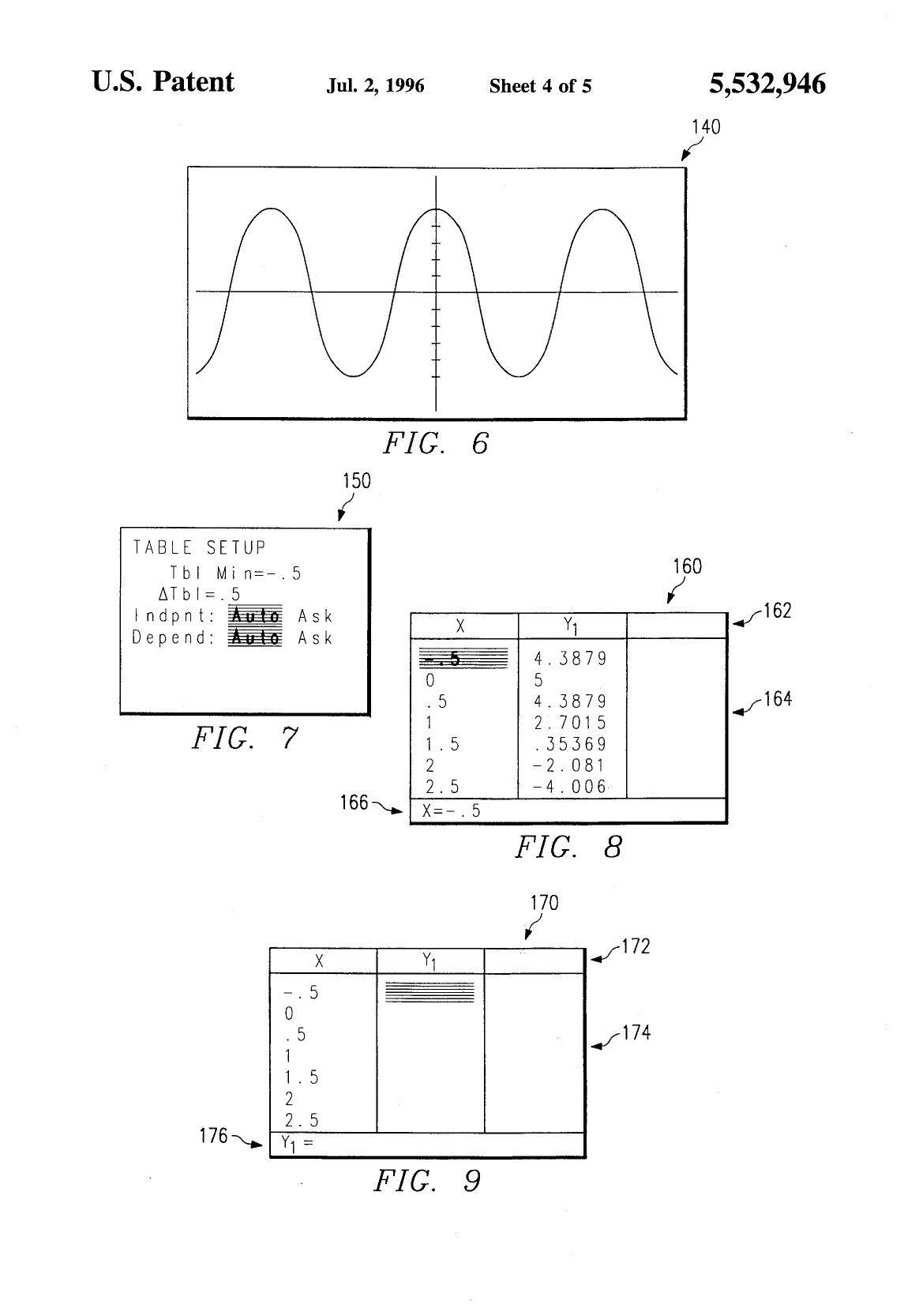
TI’s patent on this feature, US 5,532,946, “Calculator with table generation capability”, filed in 1993 with Ann Phipps and David Santucci as inventors, is in the Library.
7.8 Statistics: the pendulum
TI’s statistics example (pp. 183–185) uses twelve measurements of a pendulum’s period against its length, from Contemporary Precalculus Through Applications (North Carolina School of Science and Mathematics, 1992):
Table 2 — TI's statistics example (pp. 183–185) uses twelve measurements of a pendulum's period against its length, from Contemporary Precalculus Through Applications (North Carolina School of Science and Mathematics, 1992)
| Length (cm) | 6.5 | 11.0 | 13.2 | 15.0 | 18.0 | 23.1 | 24.4 | 26.6 | 30.5 | 34.3 | 37.6 | 41.5 |
|---|---|---|---|---|---|---|---|---|---|---|---|---|
| Period (s) | 0.51 | 0.68 | 0.73 | 0.79 | 0.88 | 0.99 | 1.01 | 1.08 | 1.13 | 1.26 | 1.28 | 1.32 |
- STAT 5 (SetUpEditor) ENTER, to put lists L1 to L6 back in the editor.
- STAT 1 (Edit): type the lengths into L1 and the periods into L2.
- 2nd STAT PLOT 1: turn Plot1 on, as a scatter plot of L1 against L2; ZOOM 9 (ZoomStat) fits the window to the data.
- STAT ► 4 (LinReg(ax+b)): in the wizard, Xlist L1, Ylist L2, Store RegEQ to Y1 (ALPHA F4 ENTER), then Calculate.
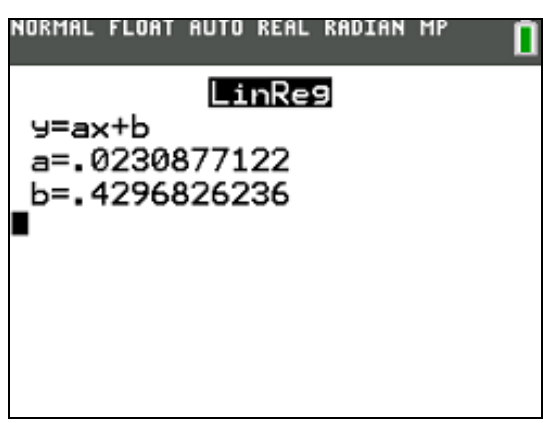
TI’s screen gives a = .0230877122 and b = .4296826236: the period grows by about 0.023 s per centimetre. The line is stored in Y1 and drawn over the points, and the residuals go into a list called RESID. The guide then plots the residuals, finds them negative at both ends and positive in the middle, a sign that the data curve downwards, and fits a power model instead (STAT ► A, PwrReg), which gives y = .192x^.522, close to the square root that the guide suggests trying (pp. 186–188).
7.9 Finance: the TVM Solver
APPS 1 (Finance) 1 opens the TVM Solver, which finds any one of the time-value-of-money quantities from the other four: N payments, I% interest a year, PV present value, PMT payment and FV future value, with P/Y payments and C/Y compounding periods a year. Money paid out is negative and money received positive (pp. 255–257).
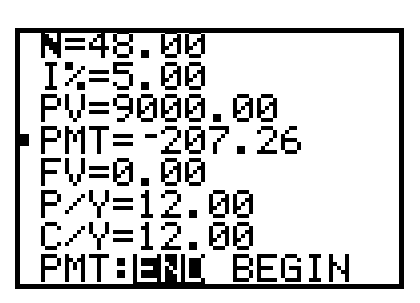
Financing a car. A car costs 9,000; the bank charges 5 % over four years; can the buyer afford 250 a month? Set FIX 2 in MODE, then in the TVM Solver enter N = 48, I% = 5, PV = 9000, PMT = 0, FV = 0, P/Y = 12, C/Y = 12, PMT: END. Put the cursor on PMT and press ALPHA SOLVE (ALPHA ENTER). TI’s screen shows PMT = −207.26: yes, with about 43 a month to spare.
Compound interest. At what annual rate, compounded monthly, will 1,250 grow to 2,000 in 7 years? Enter N = 7, PV = −1250, PMT = 0, FV = 2000, P/Y = 1, C/Y = 12, and solve for I%. TI: “You need to look for an interest rate of 6.73%” (p. 257).
7.10 Matrices: a system of equations
2nd MATRIX (above x⁻¹) holds up to ten matrices, [A] to [J]. TI’s example (pp. 146–147) solves X + 2Y + 3Z = 3 and 2X + 3Y + 4Z = 3:
- 2nd MATRIX ► ► (EDIT) 1 for [A]; set its size to 2 × 4 and type the rows 1, 2, 3, 3 and 2, 3, 4, 3.
- On the home screen, 2nd MATRIX ► (MATH), wrap to B:rref(, then 2nd MATRIX 1 for [A], ) ENTER.
The reduced row-echelon form gives, in TI’s words, “1X − 1Z = −3 therefore X = −3 + Z; 1Y + 2Z = 3 therefore Y = 3 − 2Z”: two equations in three unknowns have a line of solutions, not one.
7.11 The Numeric Solver
MATH ▲ wraps to the bottom of the MATH menu and C:Numeric Solver. Type the equation as two sides, E1 and E2, press OK, put the cursor on the unknown, give a starting value and, if needed, narrower bounds than the default −1E99 to 1E99, and press the SOLVE key under the screen (CE, pp. 52–53). TI’s example, in its screen pictures, is −7(2X − 3) + 5(4X + 1) = −6X + 2; the calculator finds “only one solution, X=−2”, and shows E1 − E2 = 0, the two sides agreeing.
7.12 Lists, programs and Python
Lists L1 to L6, and lists with names of up to five characters, are typed in the STAT editor and used by the statistics, plotting and list functions. PRGM creates and runs TI-BASIC programs, and on the Python models it also opens the Python app; both are the subject of volume 8. Press-to-Test, the exam mode, is described in volume 4.
Sources
- TI, Getting Started with the TI-84 Plus CE (2023), pp. 5–7, 22, 30, 44, 52–53, 69.
- TI, TI-84 Plus C Silver Edition Guidebook (2013), pp. 72–73, 91–93, 117, 123–124, 146–147, 183–188, 255–257, 330.
- TI, Reference Guide for the TI-84 Plus CE (2019), for the syntax of every command, and the Apps guide for the TI-84 Plus CE-T for the preloaded applications.
- Patent US 5,532,946 (TI, filed 29 September 1993, granted 2 July 1996).
Comments (0)