Graphing Calculators · Volume 6
How It Graphs and Calculates
A graphing calculator does not know what a curve looks like. It knows a formula, a window and a grid of dots, and it draws by working through the grid one column at a time. Most of the oddities of calculator graphs, the jagged lines, the false vertical lines at asymptotes, the tiny gaps, come from that simple method, and most of the analysis tools, finding a zero or an intersection or an area, are numerical routines that work on the formula behind the picture.
6.1 The idea, in Casio’s patent
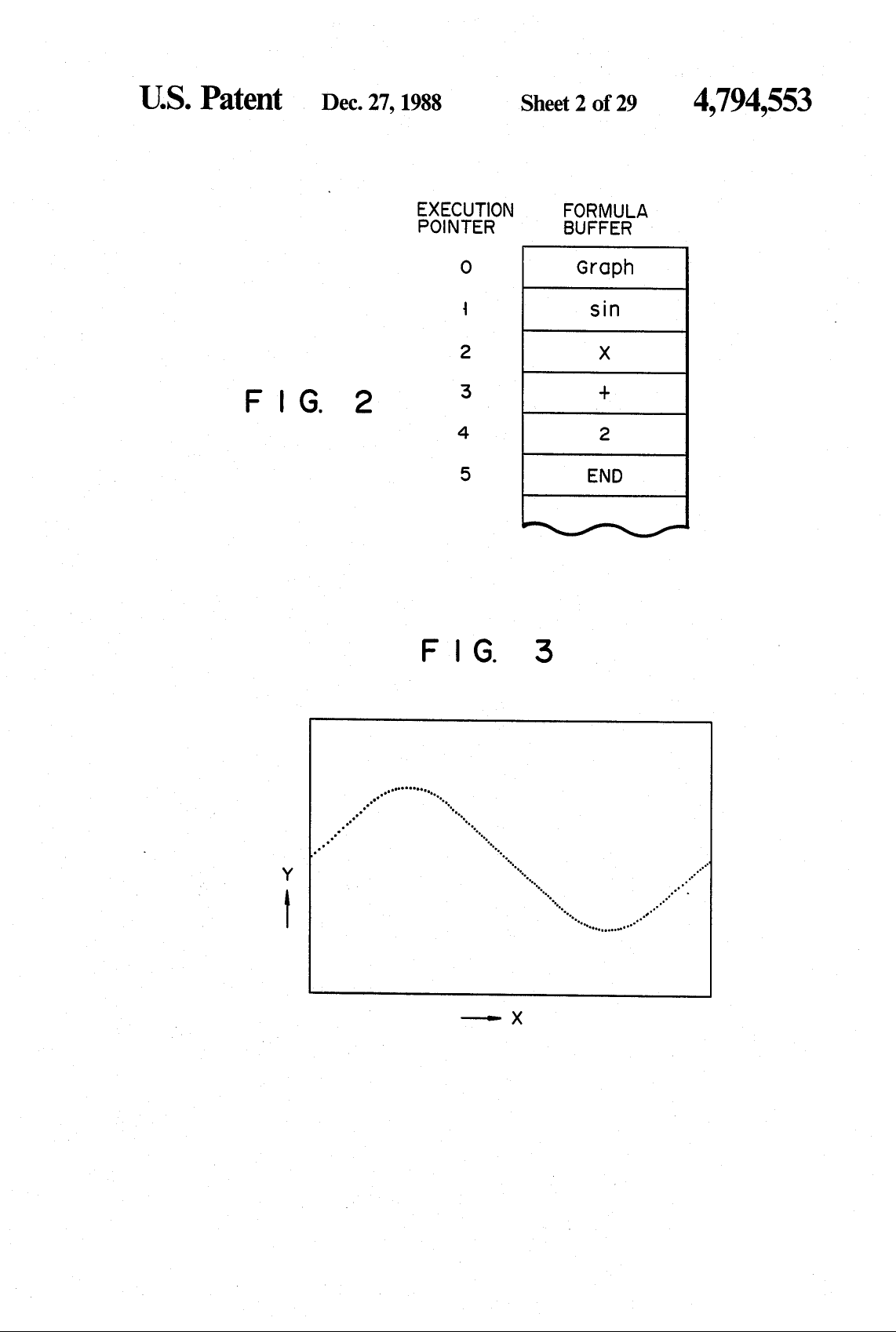
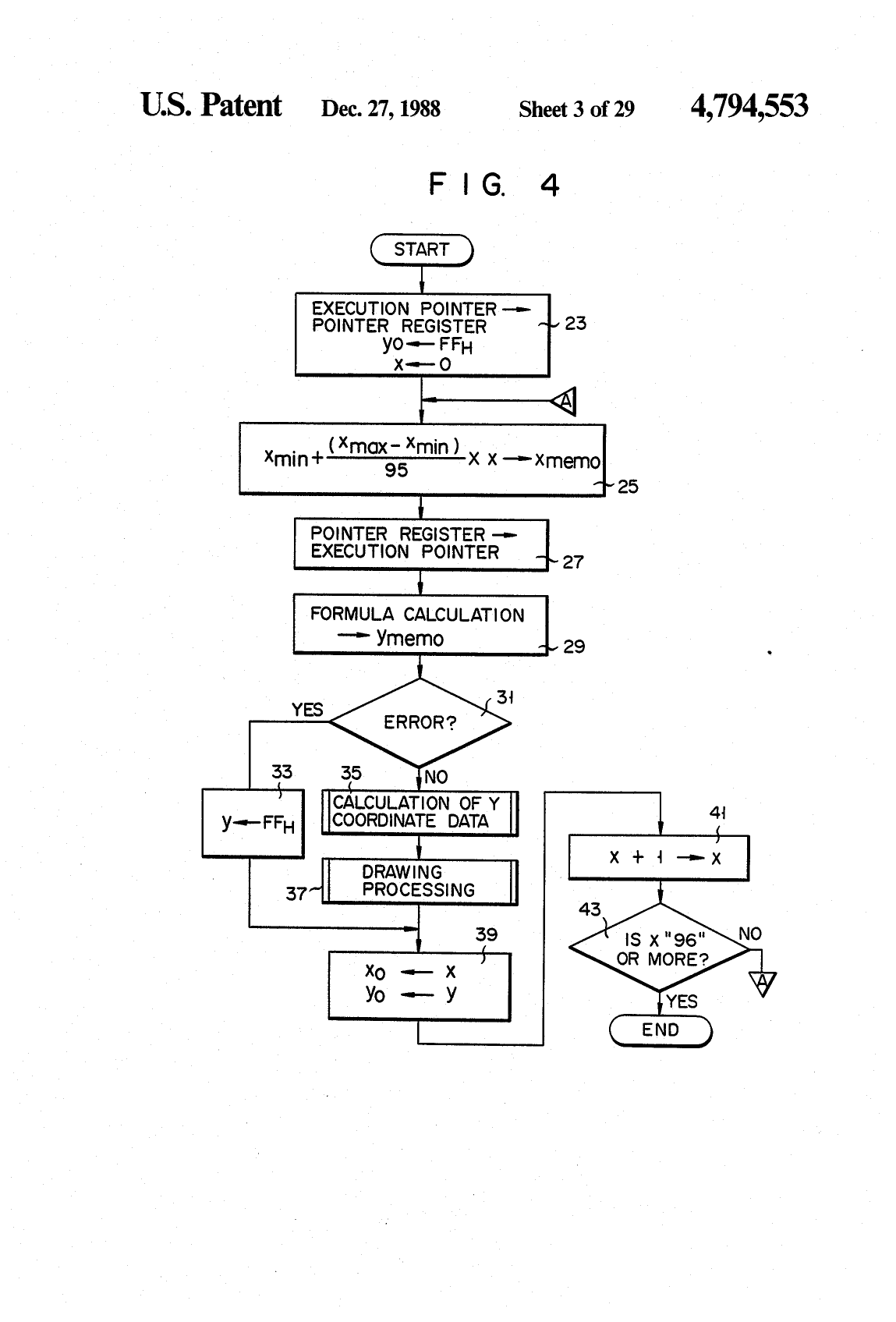
Casio’s patent US 4,794,553, with a Japanese priority of May 1985, sets out the method the fx-7000G used, step by step. Its example is the function y = sin(x + 2), typed after the GRAPH key and stored as codes in a formula buffer, one code per key, ending with an END code when EXE is pressed. Before drawing, the calculator holds the range of x and of y in four registers, Xmin, Xmax, Ymin and Ymax. Then, for each dot across the 96-dot screen, it:
- works out the real value of x for that column as Xmin + (Xmax − Xmin) × column / 95;
- runs the formula in the buffer to get y, and marks an error if the calculation overflows;
- converts y to a row, rounds it to a whole number, and marks it out of range if it is below 0 or above 63;
- if neither this point nor the last one is in error, draws a line from the previous dot to this one.
Forty years later the TI-84 Plus CE does the same thing on a larger grid.
6.2 Window and pixels
The CE’s graph area is 265 × 165 pixels. TI’s guidebook for the TI-84 Plus C Silver Edition, which has the same screen, gives the relation between the window and the pixels: Xmin and Xmax fall on the first and last columns of the graph, 264 steps apart, so that
- ΔX = (Xmax − Xmin) / 264,
- ΔY = (Ymax − Ymin) / 164,
- TraceStep = 2ΔX.
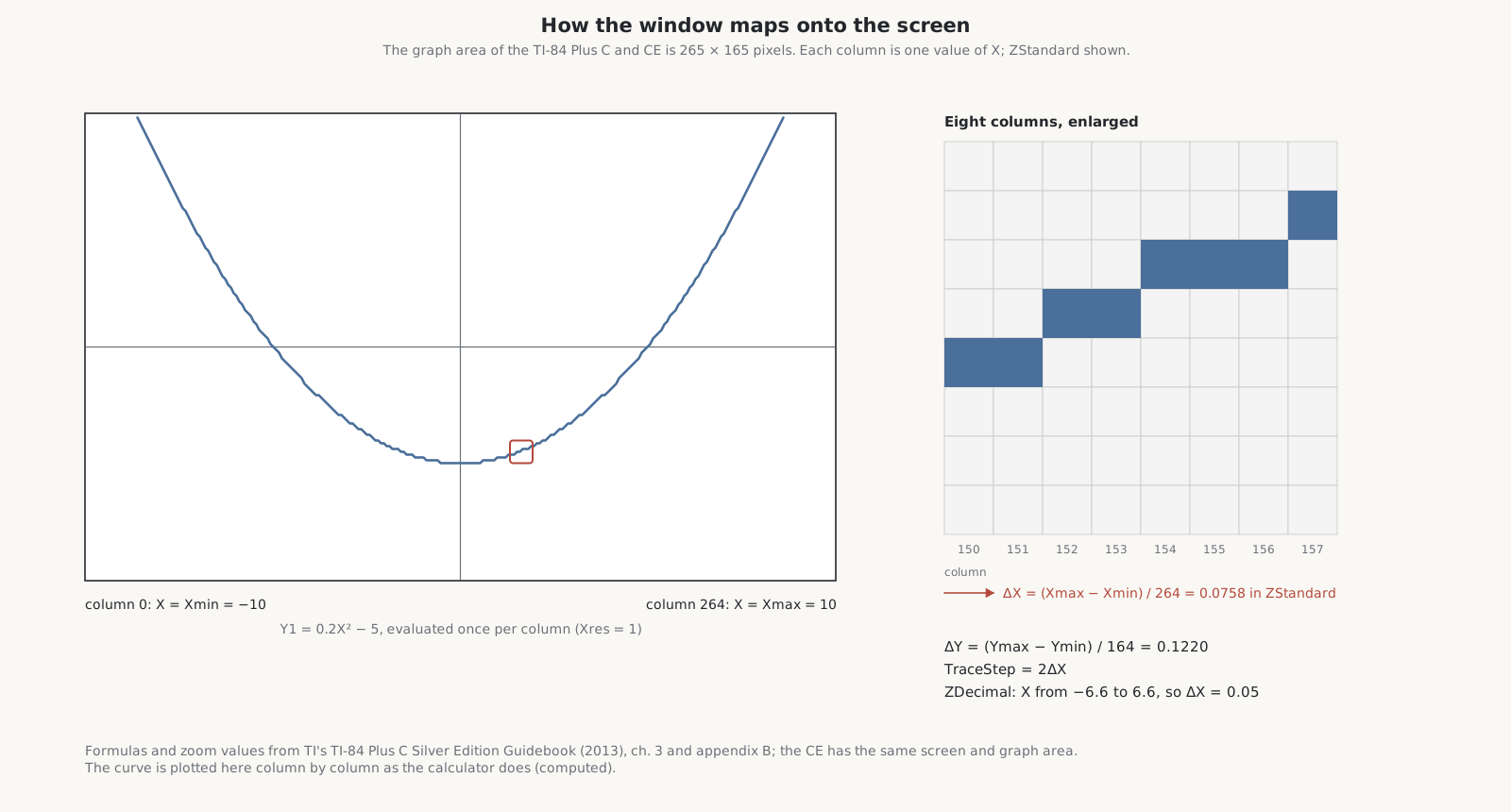
The ZOOM menu’s preset windows are built round these numbers:
Table 1 — The ZOOM menu's preset windows are built round these numbers
| Zoom | X range | Y range | ΔX |
|---|---|---|---|
| ZStandard (ZOOM 6) | −10 to 10 | −10 to 10 | 0.0758 |
| ZDecimal (ZOOM 4) | −6.6 to 6.6 | −4.1 to 4.1 | 0.05 |
| ZTrig (ZOOM 7, radians) | −2.75π to 2.75π | −4 to 4 | π/48 |
| ZInteger | centred on the cursor | 0.5 |
ZDecimal is the one to choose when tracing, because each step of the trace cursor is then a round 0.1. On the monochrome TI-84 Plus, with a 95-column graph, the same window was −4.7 to 4.7; programs written for it draw in the wrong places on the CE unless their pixel numbers are changed, as TI’s programming guide warns.
Xres, in the WINDOW screen, sets how many columns to skip: at Xres = 1 the function is worked out at every column, at Xres = 8 at every eighth, which draws eight times faster and more coarsely. The calculator works out every column between Xmin and Xmax even when the curve is off the screen.
6.3 Joining the dots, and asymptotes
Each point is joined to the next in the default THICK line style, which TI says is the same as the CONNECTED mode of older models. The DOT-THICK and DOT-THIN styles plot only the points. Joining the points makes a smooth-looking curve, but it goes wrong where the function jumps. For tan x, the column just left of π/2 gives a large positive value and the next a large negative one, and the calculator draws a line between them: a vertical line that is not part of the graph. “They are simply the calculator behaving as it should in ‘Connected’ mode,” as the teaching site MathBits puts it.
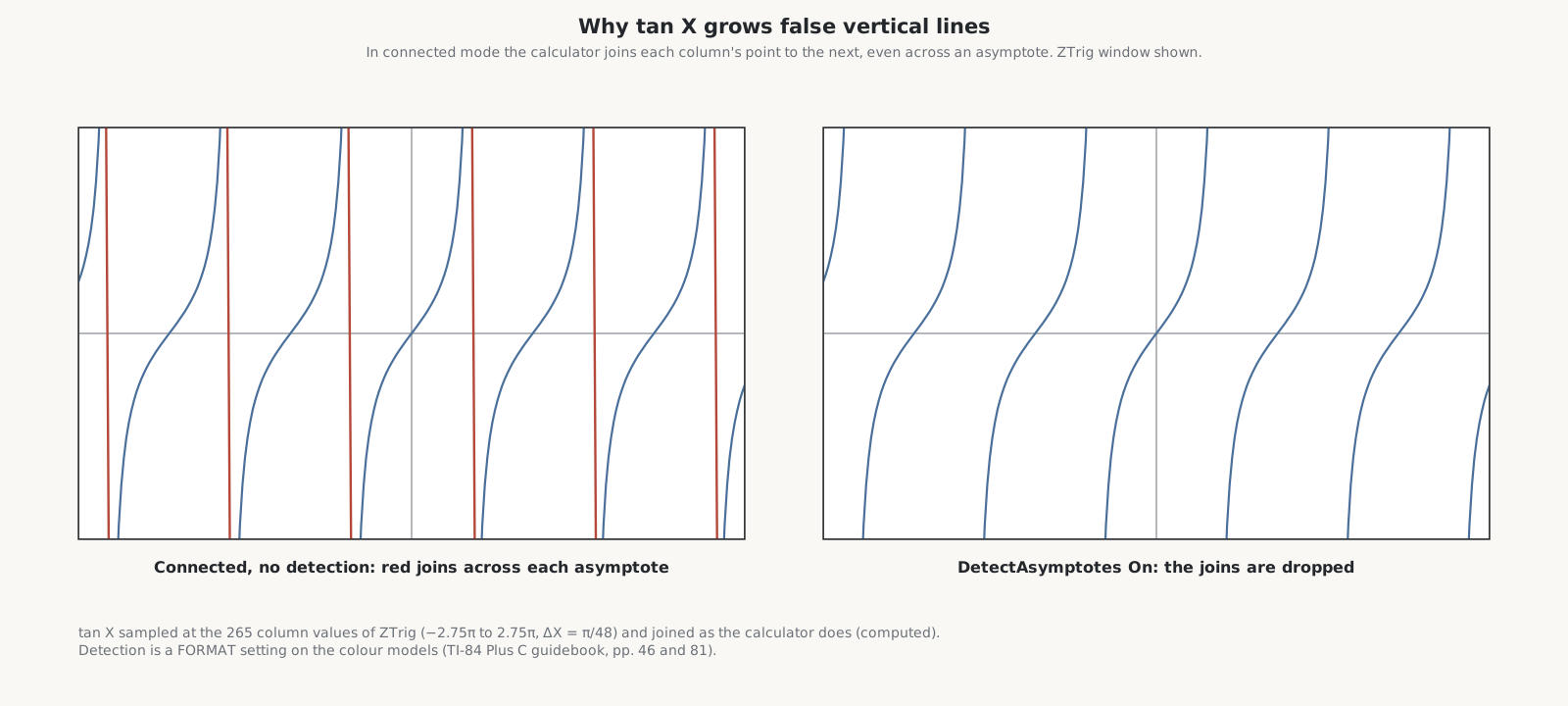
TI added discontinuity detection to the TI-84 Plus in its operating system 2.30 (MathBits says 2.40), and the colour models have a FORMAT setting, Detect Asymptotes, which removes such lines at some cost in speed. TI’s own guidebook suggests switching it off for functions with no asymptotes, such as its family of parabolas in volume 7.
6.4 How a number is stored
Every number on the TI-84 Plus CE, and on every TI-83 and TI-84 before it, is held in nine bytes: one byte for the sign and type, one for the exponent, and seven for a mantissa of fourteen decimal digits, two to a byte. The exponent is stored with 80h added, so that 80h means 10⁰ and the range runs from 10⁻⁹⁹ to 10⁹⁹. A complex number is two such numbers in a row.
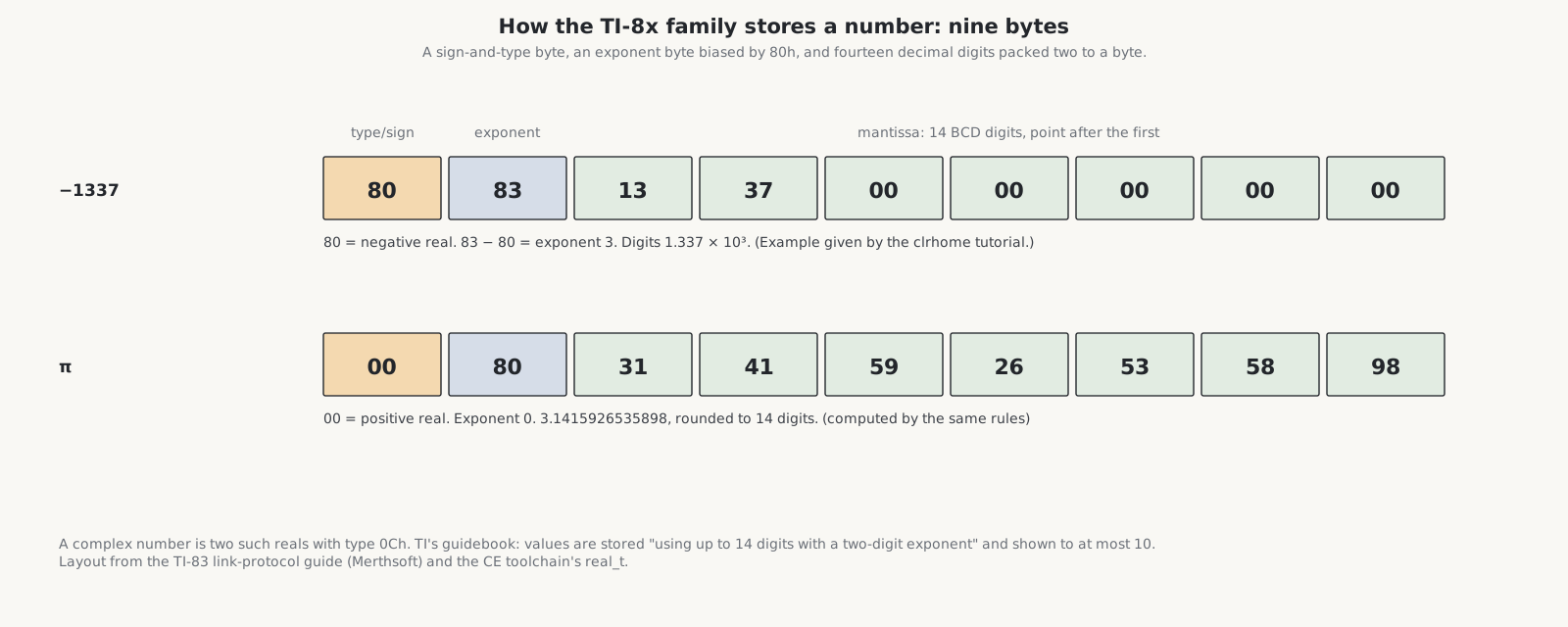
TI’s guidebook says that values “are stored in memory using up to 14 digits with a two-digit exponent” and displayed with “a maximum of 10 digits”. The four hidden digits, like the guard digits of a scientific calculator, absorb rounding errors. Inside the operating system’s arithmetic routines, working numbers are two bytes longer still: the CE’s floating-point work registers are spaced 11 bytes apart.
For sines, logarithms and the other transcendental functions, TI’s knowledge base says its graphing calculators use CORDIC, the shift-and-add method described in the scientific-calculators dive; whether the CE’s operating system still uses it has not been published.
6.5 Derivatives
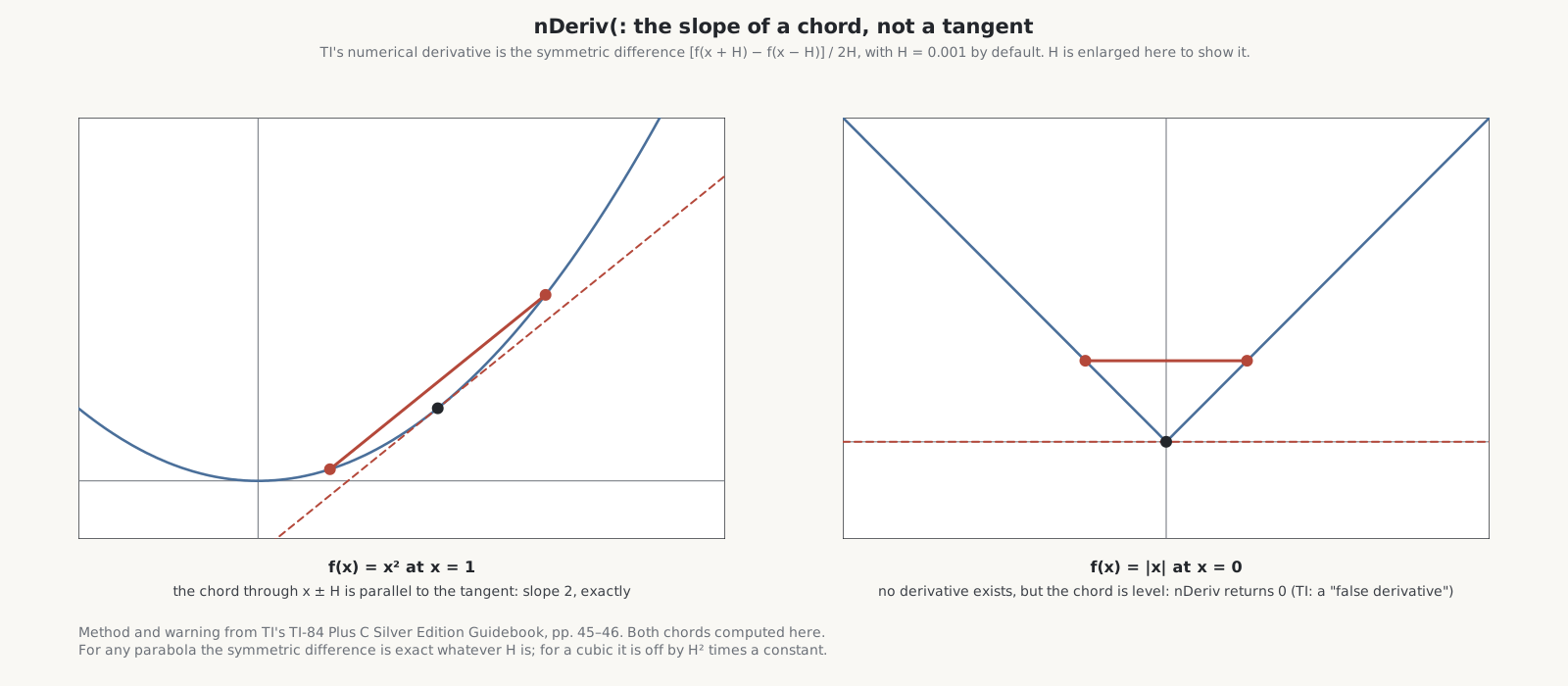
nDeriv(, and dy/dx on the graph’s CALC menu, find a derivative numerically by the symmetric difference quotient: the slope of the chord between x − H and x + H,
f′(x) ≈ [f(x + H) − f(x − H)] / 2H,
with H = 0.001 unless the user gives another value. TI warns that it “can return a false derivative value at a nondifferentiable point”. At the corner of |x|, for instance, the chord is level and the calculator reports a slope of 0, though the function has no derivative there. For any parabola the chord is exactly parallel to the tangent whatever H is.
6.6 Integrals
fnInt(, and ∫f(x)dx on the CALC menu, use the Gauss–Kronrod method. In an explanation written for the TI-82 and TI-85 at the University of Kentucky, the function is sampled at a set of points chosen so that a cheaper estimate and a better one can be compared, and wherever the two disagree by more than the tolerance the interval is cut in two and each half done again. The default tolerance is 1E−5 for fnInt( and 1E−3 for the CALC menu. TI does not publish how many points it uses. Cemetech’s TI-BASIC reference gives an example of the tolerance at work: the integral of ln x from 0 to 1, which is exactly −1, comes out as −.999998347 at the default tolerance and −1 at a tolerance of 1E−11. Like any such method, it can miss a sharp feature that falls between its sample points.
6.7 Zeros, intersections and solve(
The graph’s zero and intersect tools ask for a left bound, a right bound and a guess, and then, TI’s guidebook says, find the answer “using solve(”. minimum and maximum work to a tolerance of 1E−5. TI describes the process only as “iterative”. For the older TI-85 and TI-86, its knowledge base gives the method: a secant step between two end points, falling back to bisection when the secant step would leave the interval or shrink it less than bisection would. The TI-BASIC community’s reference says that solve( on the TI-83 and TI-84 uses Brent’s method, which combines the same two ideas with inverse quadratic interpolation; TI has not confirmed it. Either way, the solver needs the function to change sign between the bounds, which is why it reports NO SIGN CHG, and why a double root, where the curve touches the axis without crossing, can defeat it.
The Numeric Solver on the MATH menu wraps the same routine in an editor, and shows E1 − E2, the difference between the two sides of the equation at its answer, so that the user can see how close it came.
6.8 Regression
The statistics regressions, LinReg and the rest, are least-squares fits. With STAT DIAGNOSTICS on, the CE also shows the correlation coefficient r and r² with each fit; volume 7 works TI’s pendulum example.
Sources
- Casio, patent US 4,794,553, “Compact electronic calculator having graph display function” (priority 24 May 1985; granted 27 December 1988), columns 5–6 and figs. 2–6.
- TI, TI-84 Plus C Silver Edition Guidebook (2013): ch. 2 (nDeriv, fnInt, solve, pp. 45–48), ch. 3 (window, Xres, zoom, CALC menu, pp. 79–93) and appendix B (pp. 390–394); TI, TI-Basic Programming Guide for the TI-84 Plus CE, p. 7.
- TI knowledge base: “discontinuity detection” (article 23250), the TI-85/86 solver (10410) and CORDIC (11693).
- The University of Kentucky’s note on numerical integration on the TI-82 and TI-85 (ms.uky.edu); MathBits, “Asymptotes on the graphing calculator”; Cemetech’s TI-BASIC reference (learn.cemetech.net) on fnInt( and solve(; the Merthsoft TI-83 link guide and the clrhome floating-point tutorial; the CE C toolchain’s
ti/real.h.
Comments (0)